How to Automate Facebook Ads Reports in Google Sheets: Complete Guide 2026
If you're opening Ads Manager every day, manually copying numbers and pasting them into a spreadsheet — you're spending time that costs real money. A media buyer with 8 clients spends up to 10 hours per week on manual reporting alone. In this guide, I'll show you how to connect Facebook Ads to Google Sheets automatically — no code, no API knowledge, in under 5 minutes.
Why Manual Facebook Ads Reporting Is Costing You More Than You Think
Every media buyer knows the ritual: open Ads Manager, select the ad account, set the date range, find the right campaigns, copy impressions, clicks, spend, CPC, CTR, conversions — and paste it all into the client's spreadsheet. Then repeat for the next client. And the next one.
With three clients, this takes 30–40 minutes a day. With eight clients — already 1.5–2 hours. At a small agency with 20 clients — up to 4 hours daily disappear into pure copy-pasting. And that's before formatting, building charts, and answering client questions like "why did CTR drop yesterday?"
But time isn't the only problem. Here's what else happens with manual reporting:
- Data entry errors. Humans aren't machines. A misplaced decimal, transposed rows, or copying the wrong value — and the media buyer makes advertising decisions based on wrong numbers.
- Manual checking steals attention. Even if data is updated once a day, the specialist still has to open Ads Manager, compare numbers, and move them into a spreadsheet instead of analyzing campaigns.
- Can't scale. You can't comfortably take on several more clients if every new client adds manual reporting to your working day.
- Burnout. Repetitive mechanical work is one of the top reasons media buyers burn out within 1–2 years.
Do the math: if manual reporting takes just one hour a day, that's about 20 hours per month. With fixed-fee clients, that time usually isn't billed separately — it simply eats into hours you could spend optimizing campaigns, communicating with clients, or taking on new projects. Automation at $14/month pays for itself if it saves even one working evening.
What Facebook Ads Data You Need in Google Sheets
Before diving into tools, let's understand what data you actually need from Facebook Ads and why.
Data levels to sync
Facebook Ads has a hierarchical structure: Ad Account → Campaign → Ad Set → Ad. A good automation tool exports data at all levels:
- Account level: total spend, overall performance
- Campaign level: performance by objective
- Ad Set level: audiences, placements, budgets
- Ad level: individual creative performance
Key metrics to track
Here are 40+ metrics worth tracking in automated Facebook Ads reports:
3 Ways to Connect Facebook Ads to Google Sheets: Comparison
Method 1: Manual export (what you're doing now)
Open Ads Manager → run a report → download CSV → open in Google Sheets or copy manually.
Pros: free, no technical knowledge required.
Cons: takes 30–120 minutes daily, copy-paste errors, data goes stale instantly.
Method 2: Facebook Marketing API + Google Apps Script
Write a script in Google Apps Script or Python that calls the Facebook Marketing API and writes data to your spreadsheet.
Pros: flexible, free after development.
Cons: requires programming knowledge, 20–40 hours of development, ongoing maintenance as the API evolves.
Method 3: A dedicated tool (Adastra Sync and alternatives)
Connect your Facebook Ads accounts and Google Sheets through a purpose-built SaaS tool, set a schedule, and never touch a spreadsheet manually again.
| Criteria | Manual | API + Script | Adastra Sync |
|---|---|---|---|
| Setup time | 0 | 20–40 hours | 5 minutes |
| Daily time cost | 1–4 hours/day | 0 | 0 |
| Monthly cost | $400–$1,000 (your time) | $0 + maintenance time | from $14 |
| Technical knowledge | Not required | Required | Not required |
| Anomaly alerts | None | Must build yourself | Built-in (Telegram) |
| Reliability | Depends on you | Requires maintenance | Automated |
Step-by-Step: Connect Facebook Ads to Google Sheets in 5 Minutes
Let's walk through the full setup process in Adastra Sync. All you need is a Facebook account with ad account access and a Google account with a spreadsheet. If you want a shorter product walkthrough first, open the Adastra setup guide in a separate tab.
-
Sign up and start your 7-day free trial
Go to adastrasync.com and click "Try for free." Sign in with your Google account — no separate password needed. No credit card required at this stage.
-
Connect your Facebook account
In your profile, click "Connect Facebook." You'll be redirected to Facebook's standard OAuth flow — select your account and grant access to your ad accounts. This follows Meta's standard permissions model for the Marketing API and takes about 30 seconds.
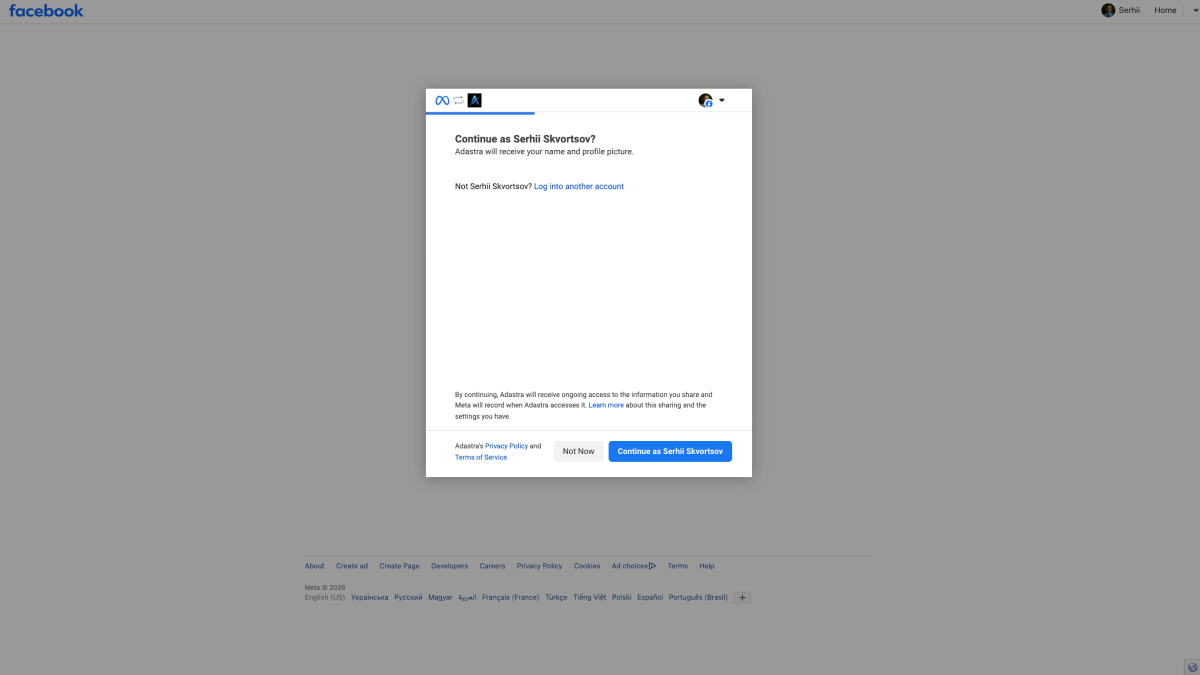
Connecting a Facebook account in the Adastra Sync profile. -
Add a client and ad account
Click "Add Client" — this is an organizational unit, such as a brand, project, or business direction. Then add an ad account from your connected accounts list.
-
Connect a Google Spreadsheet
Click "Add Spreadsheet" next to the ad account. Google Picker opens — select an existing spreadsheet or create a new one. The spreadsheet name is pulled automatically.
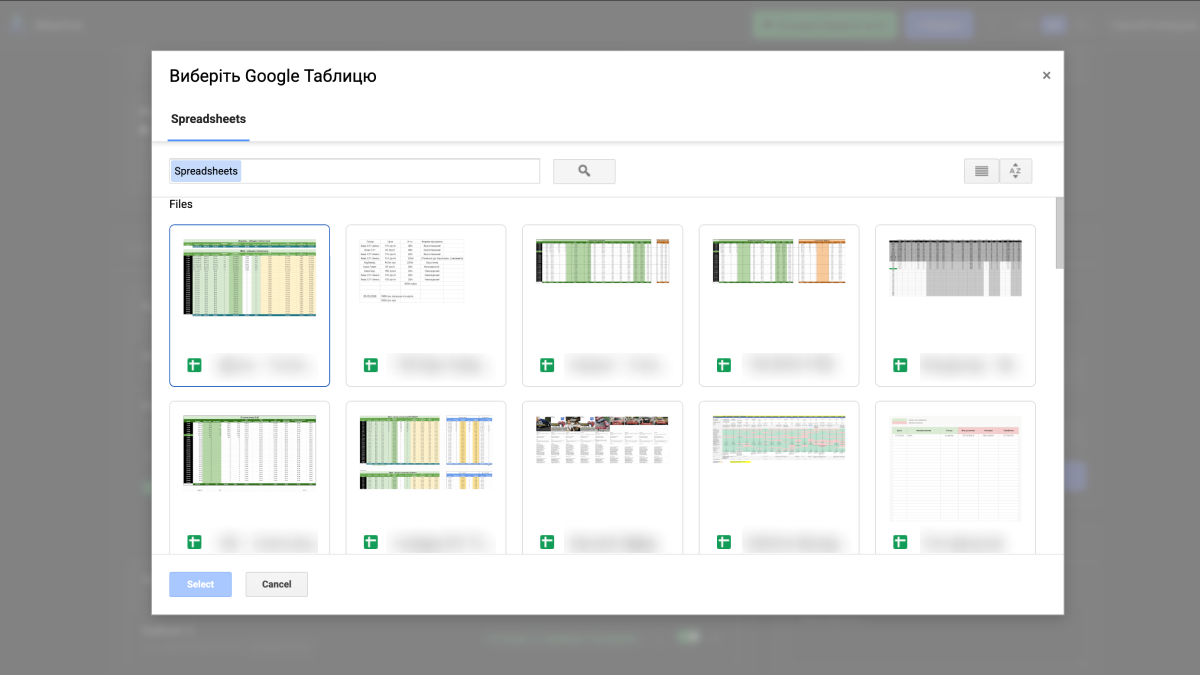
Selecting the Google Spreadsheet where Facebook Ads data will be exported. -
Configure metrics and date range
Choose what data to export: level (account/campaign/ad set/ad), date range (today, yesterday, 7 days, 30 days, custom), attribution window, and additional breakdowns (demographics, geo, placements). For deeper context on how Meta defines reporting fields, compare your setup with the official Ads Insights API documentation.
-
Set your sync schedule
Choose the automatic export interval: every 6, 12, or 24 hours. You can also run a manual sync at any time when you need fresh data.
-
Run your first sync manually
Click "Sync Now" — data appears in your Google Spreadsheet within 1–3 minutes depending on volume. You'll see real-time progress as a percentage.
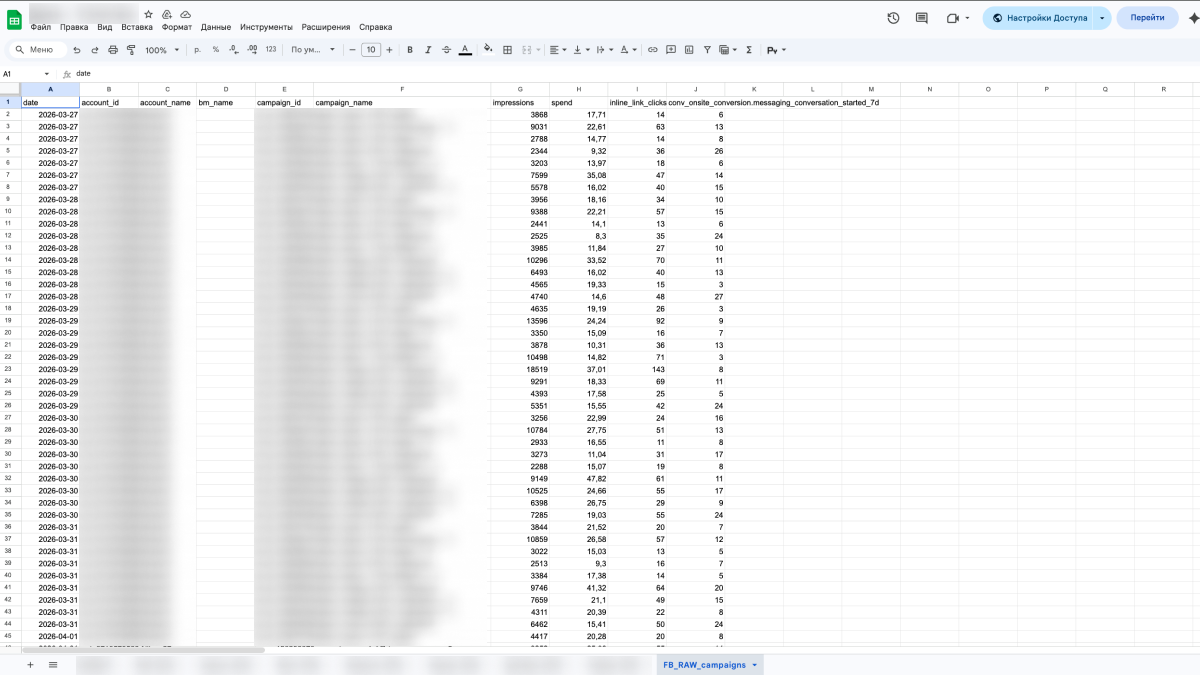
The completed Google Sheet after the first Facebook Ads data sync.
Pro tip: Connect the Telegram bot during setup. Type /start in @adastra_sync_bot to link your account — you'll get sync completion notifications and anomaly alerts directly in Telegram.
Advanced Features: More Than Just Data Sync
Anomaly detection and Telegram alerts
One of Adastra Sync's unique features is the built-in anomaly detector. It analyzes daily data for each ad account and flags suspicious deviations:
- Budget burning significantly faster or slower than usual
- CTR dropping or spiking compared to rolling average
- CPC changing by more than 30% in a single day
- Conversions stopping while spend continues
When an anomaly is detected, you get a Telegram message: which account, which metric deviated, and by how much. No need to constantly monitor Ads Manager manually.
Automatic and manual sync
For each project, you can choose recurring exports every 6, 12, or 24 hours. If you need fresh data before a call, report, or quick campaign decision, launch a manual sync from the interface.
Adastra Sync vs. Competitors: Honest Comparison
Several tools exist for syncing Facebook Ads data to Google Sheets. Here's an honest side-by-side:
| Tool | Price/month | Facebook Ads | Setup time | Anomaly alerts |
|---|---|---|---|---|
| Adastra Sync | from $14 | ✓ | 5 minutes | ✓ Telegram |
| Supermetrics | from $99 | ✓ | 30 minutes | No |
| Windsor.ai | from $49 | ✓ | 20 minutes | No |
| Porter Metrics | from $39 | ✓ | 15 minutes | No |
| Coefficient | from $49 | ✓ | 20 minutes | No |
What sets Adastra Sync apart: it's purpose-built for Facebook/Meta Ads specifically, with a native anomaly detection system that sends Telegram alerts — something no other tool in this price range offers. At $14/month for up to 10 ad accounts, it's also the most affordable option for independent media buyers and small agencies.
Real Result: User Case Study
Sergey, media buyer and service creator, 7 clients
"I used to spend more than an hour filling spreadsheets. Some clients have several business directions that need separate data transfer, which added time and made mistakes more likely. Now I spend about 10 minutes every morning checking the results."
Frequently Asked Questions
How often does data update in Google Sheets?
Exports run automatically every 6, 12, or 24 hours. You can also trigger a manual sync at any time from the interface.
Is my data secure?
Adastra Sync uses OAuth 2.0 for both Facebook and Google connections — you never hand over passwords. Server infrastructure runs on DigitalOcean (Frankfurt), with data stored in encrypted PostgreSQL.
Which Facebook Ads metrics are available?
40+ metrics including impressions, reach, frequency, clicks, CTR, CPC, CPM, spend, ROAS, conversions (purchases, leads, registrations), video views, engagements. Plus demographic, geographic, and placement breakdowns.
Can I use my own spreadsheet template?
Yes! Adastra Sync writes data into your existing spreadsheet — to a new sheet or alongside your existing layout. You keep full control over formatting and structure.
What is the attribution window setting?
The attribution window determines how long after an ad interaction a conversion is credited to that ad. Facebook's default is 7-day click and 1-day view. Adastra lets you choose the window per spreadsheet output.
Does it work with multiple ad accounts?
Yes. Basic plan supports up to 10 ad accounts, Pro up to 25, Agency up to 100. Each account's data can go into its own spreadsheet or be combined in one.
Is there a free trial?
Yes — 7 days free, no credit card required. Connect your accounts, set up a schedule, and verify everything works before your first payment.
Conclusion
Automating Facebook Ads reports in Google Sheets is not a luxury — it's a necessity for any media buyer who values their time and their clients' business.
Instead of 1–4 hours of daily copy-pasting, you get live data in spreadsheets, Telegram alerts when something goes wrong, and the freedom to scale without the reporting bottleneck.
At $14/month, the tool pays for itself on day one — if you're honest about what your time is worth.

Author: Sergey Skvortsov
Sergey has 5+ years of experience in paid social, working across niches from e-commerce to info products and Telegram channels. He has managed more than $630,000 in ad spend and currently works with 7 clients.
He created Adastra after getting tired of spending time on constant manual spreadsheet updates.
Adastra on TelegramTry Free for 7 Days
Connect Facebook Ads to Google Sheets in 5 minutes. No credit card, no code.
Start for free →7-day trial · No credit card · Cancel anytime